Workspaces & Projects
MobileVibe organizes your work into two simple concepts: workspaces (your computers) and projects (your code folders). Here's how they work together.
What Is a Workspace?
A workspace represents one computer. When you install MobileVibe on your PC and pair it, that PC becomes a workspace. If you have multiple computers (say a work laptop and a home desktop), you'd create a workspace for each one.
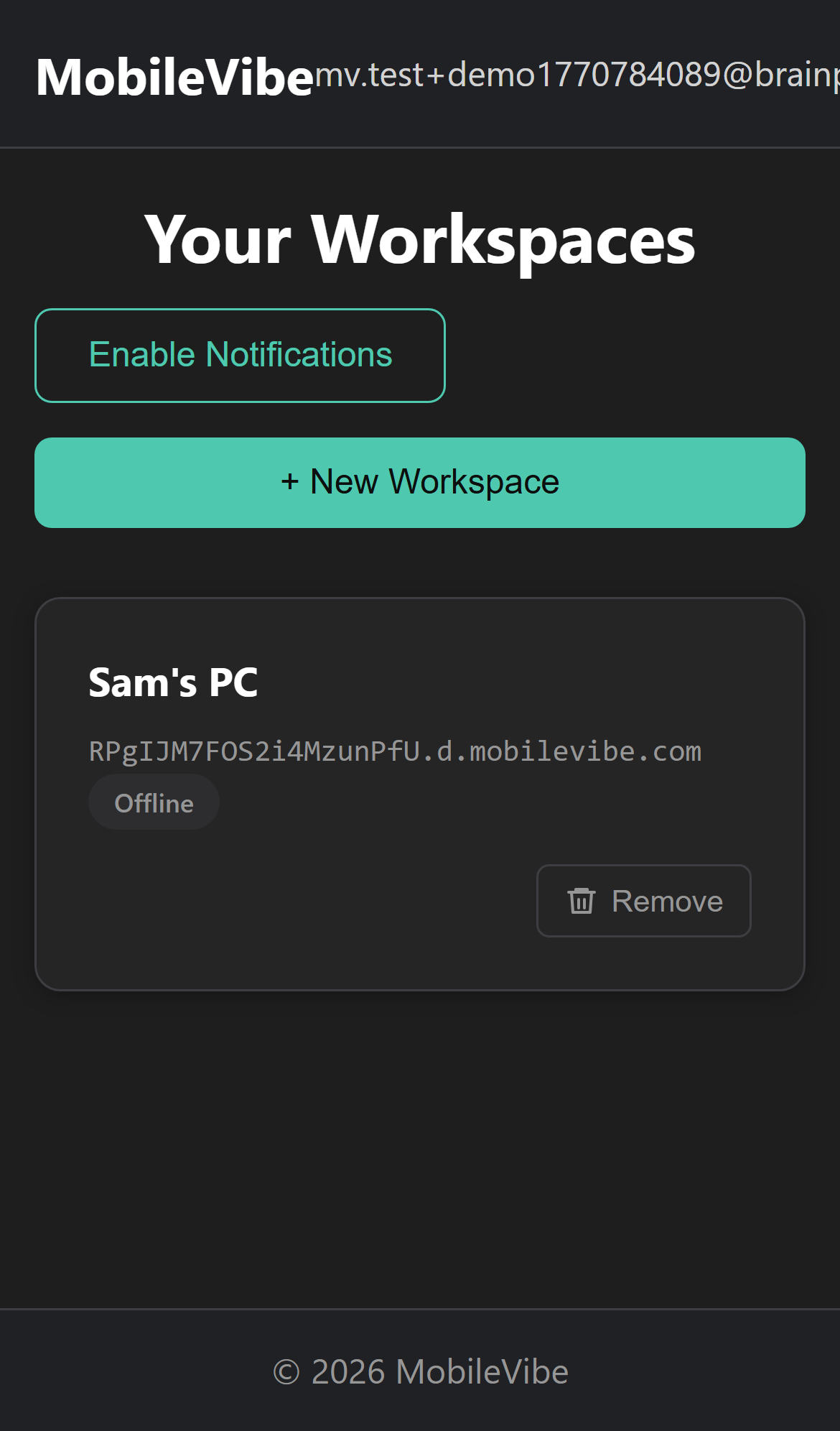
Your workspaces are listed on the main dashboard at app.mobilevibe.com. Each workspace shows its name and whether your PC can be reached.
Creating and Removing Workspaces
To create a workspace, tap + New Workspace on the dashboard and give it a name. MobileVibe automatically provisions a secure connection for it.
To remove a workspace, tap the Remove button on the workspace card. This disconnects the computer from your account. You can always re-pair it later by creating a new workspace and running Sign In / Pair again from the tray menu.
Workspace Status
A workspace is reachable when your PC is on, connected to the internet, and the MobileVibe Desktop Connector is running. If your PC is turned off, asleep, or not connected, you won't be able to launch or access projects on it.
What Is a Project?
A project is one code folder paired with an AI assistant. When you add a project, you tell MobileVibe which folder to open and which AI agent to use (Claude Code or Codex). MobileVibe then knows how to launch VS Code with the right settings for that project.
You can have as many projects as you want in a workspace. For example, you might have:
- "My Website" —
C:\dev\my-websitewith Claude Code - "Card Game" —
C:\dev\card-gamewith Codex - "Home Automation" —
C:\dev\home-automationwith Codex

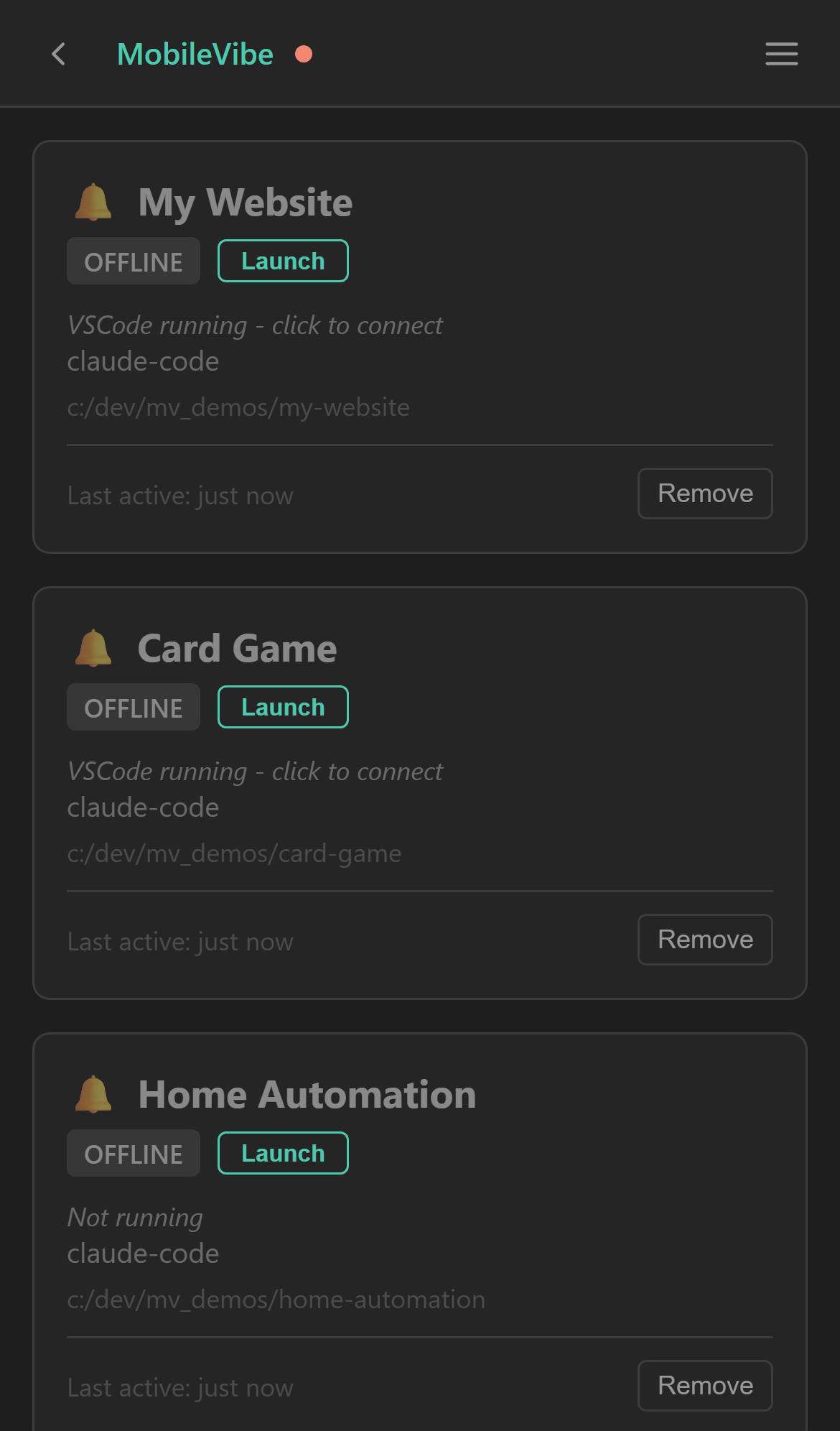
Multiple projects on the dashboard, shown on desktop and mobile.
Adding a Project
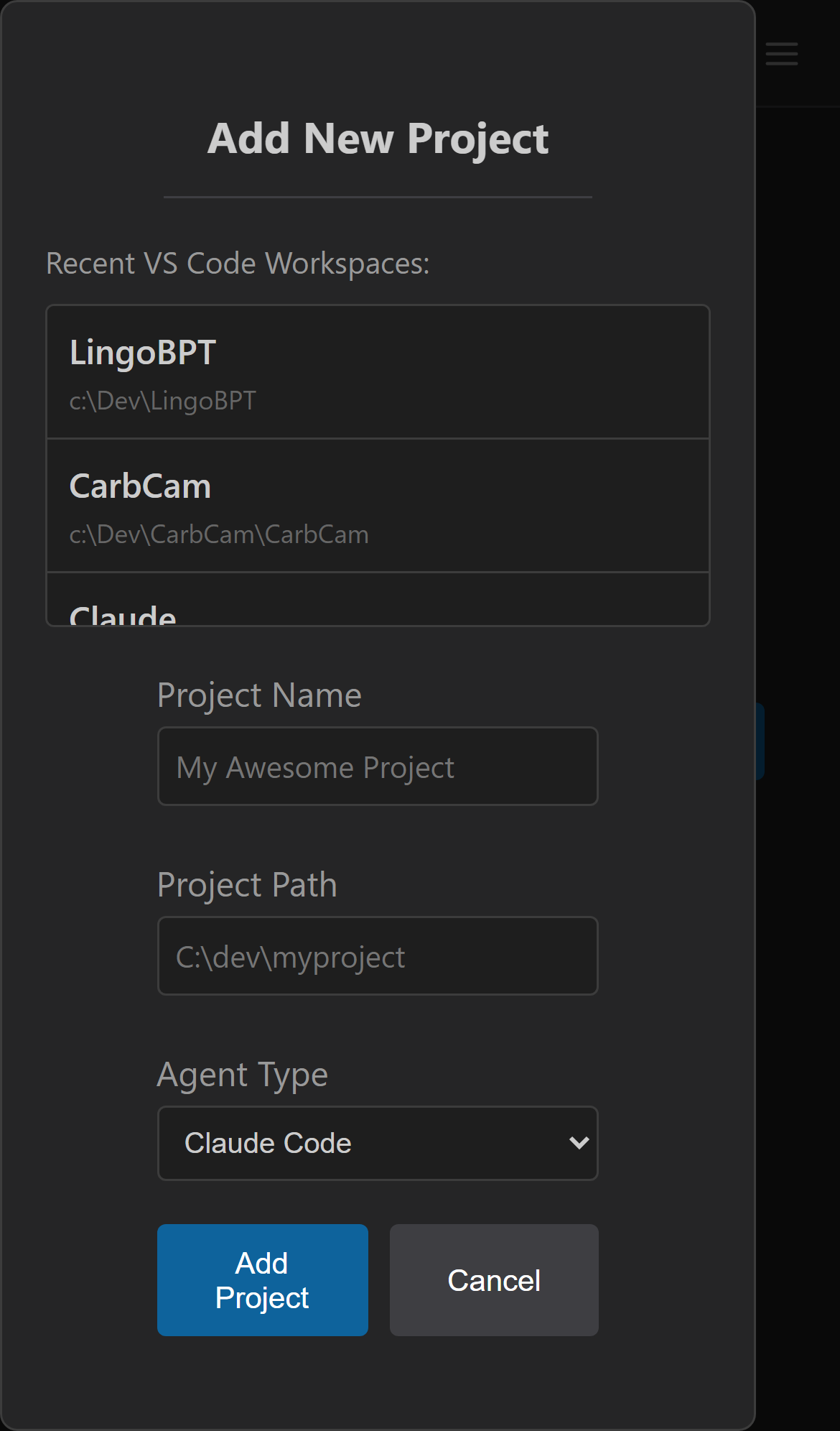
Tap Add New Project on the projects dashboard and fill in:
- Project Name — A friendly name to identify this project
- Project Path — The folder on your PC. Your recent VS Code folders show up at the top for quick selection.
- Agent — Choose Claude Code or Codex
Launching and Closing Projects
Each project card has a Launch button. Tapping it tells MobileVibe to open VS Code on your desktop with the right parameters for remote access. The project status changes from OFFLINE to ONLINE once VS Code is ready.
You can also close or restart a project from its card. Closing a project shuts down the VS Code instance.
Managing Multiple Projects
You can run multiple projects at the same time. Each one gets its own VS Code instance on your desktop. Switch between them by tapping the back arrow to return to the project list, then tapping the project you want.
To remove a project you no longer need, tap the Remove button on its card. This only removes the project from MobileVibe — your code folder and files on disk are never touched.