Using MobileVibe
Once you've set up MobileVibe, here's how to get the most out of it day to day.
The Mobile Interface
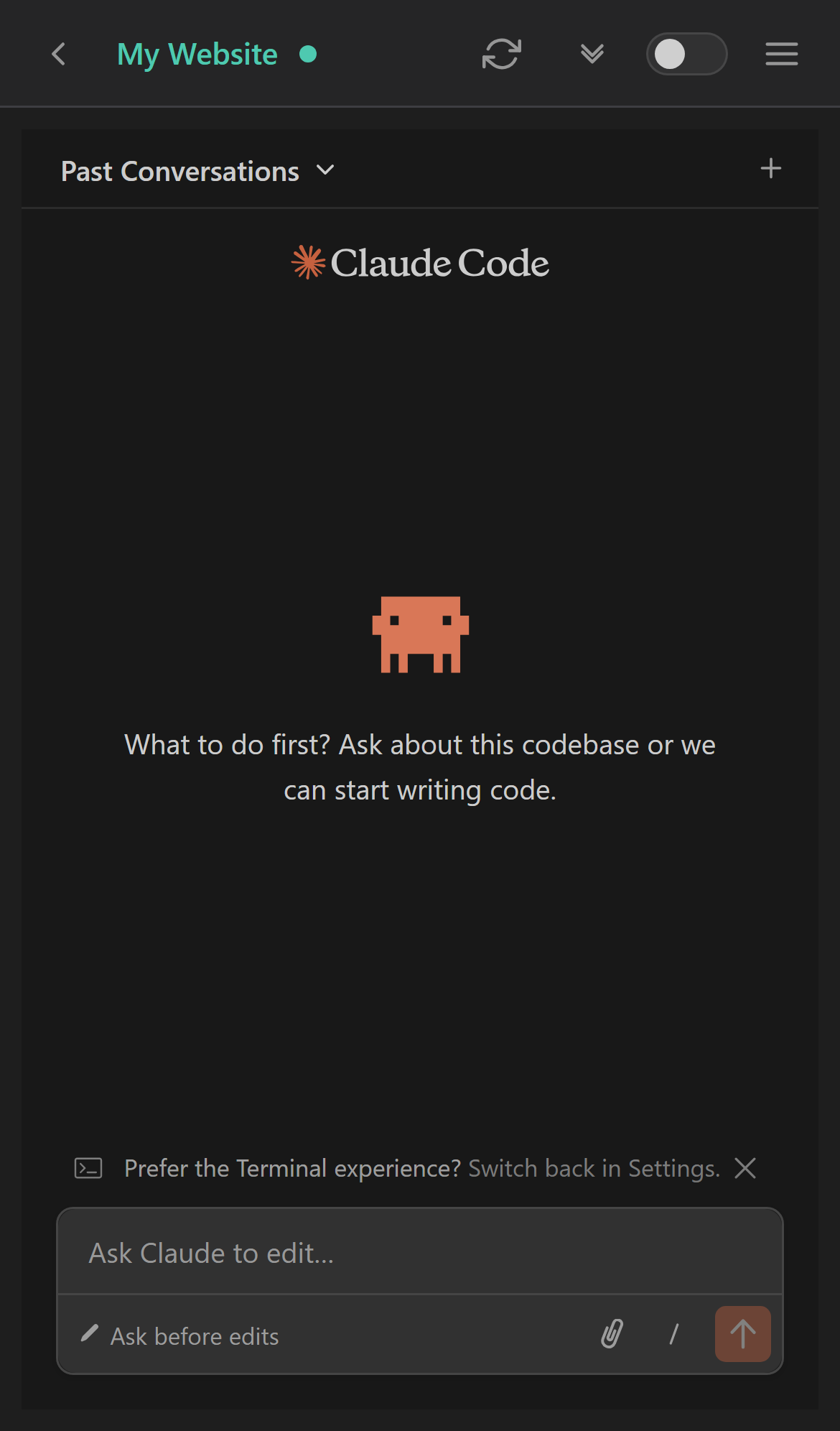
When you open a project, you'll see the Claude Code (or Codex) interface adapted for your screen. The layout is simple:
- Header bar — Shows the project name, connection status dot, and quick-access controls (refresh, scroll to bottom, auto approve toggle, and hamburger menu)
- Chat area — The main conversation with your agent, just like on your desktop
- Input box — Type your prompts here. It works with your phone's autocomplete and autocorrect
- Past Conversations — Tap the dropdown at the top to switch between conversations or start a new one with the + button
Working with Your Agent
Everything you can do with your agent on your desktop works through MobileVibe too:
- Send prompts — Type in the input box and tap the send button. Use natural language to describe what you want to build, fix, or change.
- Review output — Your agent's responses appear in the chat area. Code diffs, file changes, and explanations all render the same as on desktop.
- Approve changes — When your agent wants to edit files, you'll see an approval prompt. Tap to approve or reject, just like on desktop.
- Browse files — File path links in the conversation are tappable and will show you the file contents.
Header Bar Controls
The header bar at the top of each project gives you quick access to several controls:
- Refresh — Tap the circular arrow to reload the connection to your project.
- Scroll to bottom — Tap the double down arrow to jump straight to the bottom of the chat. Useful when you come back to a long conversation.
- Auto approve toggle — The green/gray switch lets you toggle automatic approval of file changes on and off.
- Hamburger menu — Opens additional options including the file browser.
Auto Approve
The auto approve switch in the header bar lets your agent make file changes without waiting for you to approve each one. This can speed things up significantly when you trust the direction of the work.
Browsing Project Files
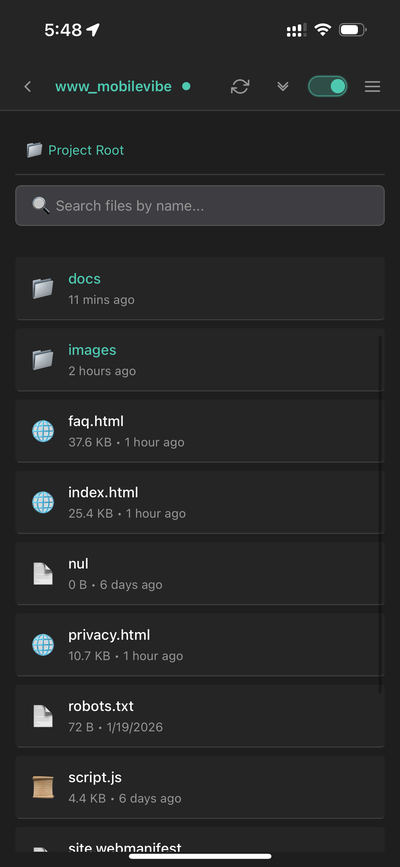
Tap the hamburger menu (☰) in the header bar and select Files to open the file browser. This shows all the files in your project folder, so you can browse your codebase right from your phone.
Use the search bar at the top to quickly find files by name. Tap any file to view its contents.
Project Status Icons
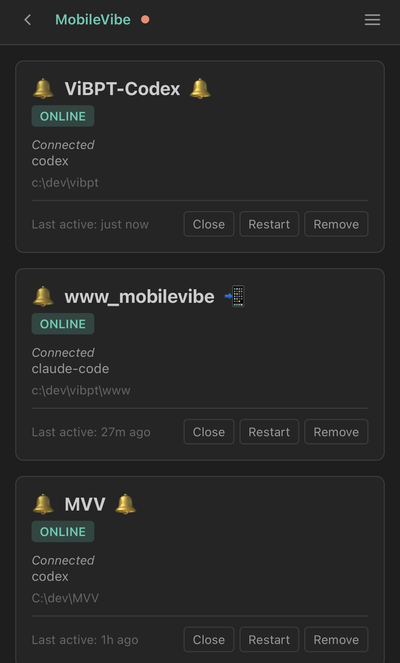
Each project displays a small status icon next to its name — both on the project card in the dashboard and in the browser tab title when you're inside a project. These icons tell you at a glance what the agent is doing:
- ⏳ Working — The agent is actively running
- 📲 Waiting for approval — The agent needs you to approve a file change
- 🔔 Idle — The agent is done and waiting for your next prompt
This is especially handy when you have multiple projects open in separate browser tabs — you can see the status icon right in the tab title without switching to each one.
Push Notifications
MobileVibe can notify you when something needs your attention, so you don't have to keep watching the screen while your agent is working.
What triggers a notification
- Approval needed — Your agent wants to edit files and is waiting for your approval
- Task complete — Your agent finished working and is idle
How to get notifications
- Chrome (desktop or Android) — Install MobileVibe as a Progressive Web App (PWA). In Chrome, open app.mobilevibe.com, click the install icon in the address bar, and allow notifications when prompted.
- iOS — Download the MobileVibe app from the App Store. Push notifications work automatically once you're signed in.
Using Multiple Devices
You can access MobileVibe from any device with a web browser — your phone, tablet, laptop, or another desktop. Just go to app.mobilevibe.com and sign in.
Multiple devices can access the same project at the same time, and they stay fully in sync — all the way down to the text typed into the input box. Everything connects to the same VS Code instance on your desktop.
Common setups:
- Phone + desktop browser — Watch your agent work on your phone while doing other things on your computer
- Phone on the go — Quick check-in or send instructions while away from your desk
Switching Between Projects
To switch to a different project, tap the back arrow in the top-left corner of the project view. This takes you back to the project list where you can open another project.
Your other projects continue running in the background — switching away doesn't close them. Each project has its own VS Code instance on your desktop.
Connection and Reconnection
MobileVibe automatically reconnects if your phone loses its connection (switching from Wi-Fi to cellular, walking out of range, etc.). You'll see the status indicator in the header bar change to show the connection state:
- Green dot — Connected and up to date
- Red dot — Disconnected, trying to reconnect
If you're disconnected for a while, just refresh the page or reopen the project and everything will sync back up.
Desktop Connector Tray Menu
The MobileVibe icon in your Windows system tray gives you quick access to common actions. Right-click the icon to see:
- Open Dashboard — Opens the projects dashboard in your default browser
- Sign In / Pair — Start the pairing process (useful if you need to re-pair)
- Sign Out — Disconnect this PC from your MobileVibe account
- Restart — Restart the Desktop Connector (useful if things get stuck)
- Quit — Shut down MobileVibe completely
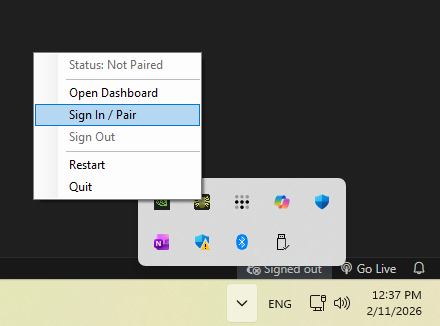
The Desktop Connector tray menu.